at bribie island with the grandies. Having trouble uploading thisfor my new avatar. I upload, it says in red, upload successful but image does not appear in avatar. What am i doing wrong? Thanks.
-- Edited by the rocket on Saturday 27th of July 2019 08:40:31 PM
Picture might be too many kb
Try emailing picture to yourself and reducing the size. Then try.
Tony
Olive Oil said
09:40 AM Jul 28, 2019
File size needs to be decreased considerably.
Place the image in Windows Photo Gallery, then go to ''properties'', then ''resize'', choose the ''640'' option (small) & resize.
If you have Photoshop you can do the same thing. Very simple.
Cheers Judy
Whenarewethere said
10:21 AM Jul 28, 2019
Small images can do with a bit of contrast sharpening. So in PS for example, before scaling down the image. Sharpen the image by about 10 to 20% but with a massive radius of 50 to 100 pixels. It seems counter intuitive to sharpen to such a large radius but it sharpens the contrast.
Better still copy the layer, change the layer to luminosity & sharpen that layer so you are not sharpening coloured artefacts. You are only sharping the lightness channel.
Or change to LAB, sharpen the lightness channel & blur the A & B channels. This is good if you have some colour artefacts you need to tone down. Sometimes only the A or B channel needs bluring to lesser degrees. Then change back to RBG.
Whenarewethere said
10:37 AM Jul 28, 2019
I just tried a large image in Handcent & SMS to myself & it cut it down to 640 X 480 pixels & 217kb.
P.S. Handcent you can set up to confirm before sending which has saved my life many times!
Whenarewethere said
10:44 AM Jul 28, 2019
I hope you don't mind here it is via Handcent 360 X 270 pixels 0.1mp 176kb:
I prefer to do this stuff in Photoshop as you can really squash images down with a good balance with minimal artefacts also using the above tips. A 720 X 480 pixel image one can have good quality at 25 to 45kb in general.
the rocket said
12:12 PM Jul 28, 2019
Whenarewethere wrote:
I hope you don't mind here it is via Handcent 360 X 270 pixels 0.1mp 176kb:
Thankyou. I do not mind. But how do i get it to my avatar?
Whenarewethere said
12:36 PM Jul 28, 2019
Firstly download this smaller image to your computer or phone. When that is done click on > User Details (in bar near top of forum page) > Avatar (on the left) > Upload from your computer (or phone) > go to your download folder & select the image.
-- Edited by Whenarewethere on Sunday 28th of July 2019 01:01:54 PM
Whenarewethere said
12:45 PM Jul 28, 2019
In Handcent you can crop your image as well. So you can have a cropped & small pixel image with a small file size. Then SMS to yourself, then email to others who can only manage a small file.
But as I mentioned above the confirm before sending is priceless! You need to turn this feature on in the setting menu > All (at top of page) > Send message settings > Send message confirm
-- Edited by Whenarewethere on Sunday 28th of July 2019 12:53:29 PM
Santa said
01:22 PM Jul 28, 2019
As an exercise I just changed my avatar, no drama, go in to Grey Nomads profile, select avatar, remove current avatar, select upload from computer, select image you want as your avatar, then click upload.
Struth! If I changed my Avatar I would get lost cos the eagle would be gone.
the rocket said
04:55 PM Jul 28, 2019
Whenarewethere wrote:
Firstly download this smaller image to your computer or phone. When that is done click on > User Details (in bar near top of forum page) > Avatar (on the left) > Upload from your computer (or phone) > go to your download folder & select the image.
-- Edited by Whenarewethere on Sunday 28th of July 2019 01:01:54 PM
How do i download the smaller image to my computer?
Whenarewethere said
05:04 PM Jul 28, 2019
I'm on a Mac but I think you right click on the image & a menu comes up. Or click & hold or control ckick & drag the image to the desktop.
-- Edited by Whenarewethere on Sunday 28th of July 2019 05:06:06 PM
Olive Oil said
05:16 PM Jul 28, 2019
Pretty simple really.
If you know how.
-- Edited by Olive Oil on Sunday 28th of July 2019 05:17:28 PM
Whenarewethere said
05:55 PM Jul 28, 2019
& going from 2d to 3d multiply by a 100, & if you have set up your own render farm for fly-throughs multiply that by another 10! Anything less than two 30" monitors makes you inefficient.
-- Edited by Whenarewethere on Sunday 28th of July 2019 05:55:53 PM
Whenarewethere said
05:59 PM Jul 28, 2019
Get it right with the camera!
It is more enjoyable & a lot less effort than fixing it up later on the computer.
the rocket said
07:12 PM Jul 28, 2019
Whenarewethere wrote:
I'm on a Mac but I think you right click on the image & a menu comes up. Or click & hold or control ckick & drag the image to the desktop.
-- Edited by Whenarewethere on Sunday 28th of July 2019 05:06:06 PM
Thanks. Got it to my photos but it is not very clear. I chose another photo and have it as my avatar but its upside down.
the rocket said
07:21 PM Jul 28, 2019
Do not know why it is upside down. The finger one, grandson put his finge4 in front of lense but turns out his finger is pointing to a sea urchin in the sand.
-- Edited by the rocket on Sunday 28th of July 2019 07:30:18 PM
It maybe up the right way in the camera. In a situation I had on the last holiday, there was a large piece of dust inside at the top of each image & stood out like dogs ..... So wanting to avoid cleaning up skies I photographed upside down & turned the images around in the camera. Easy!
But.... when it came to posting a few images the photos would appear upside down again.
The problem is the images are rotated in the camera saying which side is up with a bit of code & this is not always recognised down stream by some websites etc.
So to be absolutely sure up is up every time, you have to use Photoshop or similar which actually rotated the pixels so up is up.
Hopefully someone else has a quick solution.
-- Edited by Whenarewethere on Sunday 28th of July 2019 08:26:32 PM
Whenarewethere said
07:57 PM Jul 28, 2019
I have rotated it in my phone but there is no guarantee that it will stay this way.
I'm on a Mac but I think you right click on the image & a menu comes up. Or click & hold or control ckick & drag the image to the desktop.
-- Edited by Whenarewethere on Sunday 28th of July 2019 05:06:06 PM
Thanks. Got it to my photos but it is not very clear. I chose another photo and have it as my avatar but its upside down.
If it is not clear because it is a small image that is ok as it is intended to be viewed as a thumbnail size only. Viewing it large on even a phone is not what the image size is for & it will never look right because there are not enough pixels.
Thumbnail size images as I said earlier need a bit of extra contrast, & sometimes sharpening a second time at 0.3 pixel sharpening.
Whenarewethere said
08:23 PM Jul 28, 2019
the rocket wrote:
Whenarewethere wrote:
I have rotated it in my phone but there is no guarantee that it will stay this way.
Hello whenarewethere, thankyou so much. I think i must be getting old. Would it be possible to do the one with me jumping as well. Thanks. Im excited.
-- Edited by the rocket on Sunday 28th of July 2019 08:11:09 PM
-- Edited by the rocket on Sunday 28th of July 2019 08:13:00 PM
This is the only one I could see that was upside down unless I'm getting old to!
the rocket said
01:37 PM Jul 29, 2019
Whenarewethere wrote:
the rocket wrote:
Whenarewethere wrote:
I have rotated it in my phone but there is no guarantee that it will stay this way.
Hello whenarewethere, thankyou so much. I think i must be getting old. Would it be possible to do the one with me jumping as well. Thanks. Im excited.
-- Edited by the rocket on Sunday 28th of July 2019 08:11:09 PM
-- Edited by the rocket on Sunday 28th of July 2019 08:13:00 PM
This is the only one I could see that was upside down unless I'm getting old to!
Thanks. Having a senior moment. Cheers.
Whenarewethere said
02:18 PM Jul 29, 2019
Better than a junior moment...... throwing a tantrum!
at bribie island with the grandies. Having trouble uploading thisfor my new avatar. I upload, it says in red, upload successful but image does not appear in avatar. What am i doing wrong? Thanks.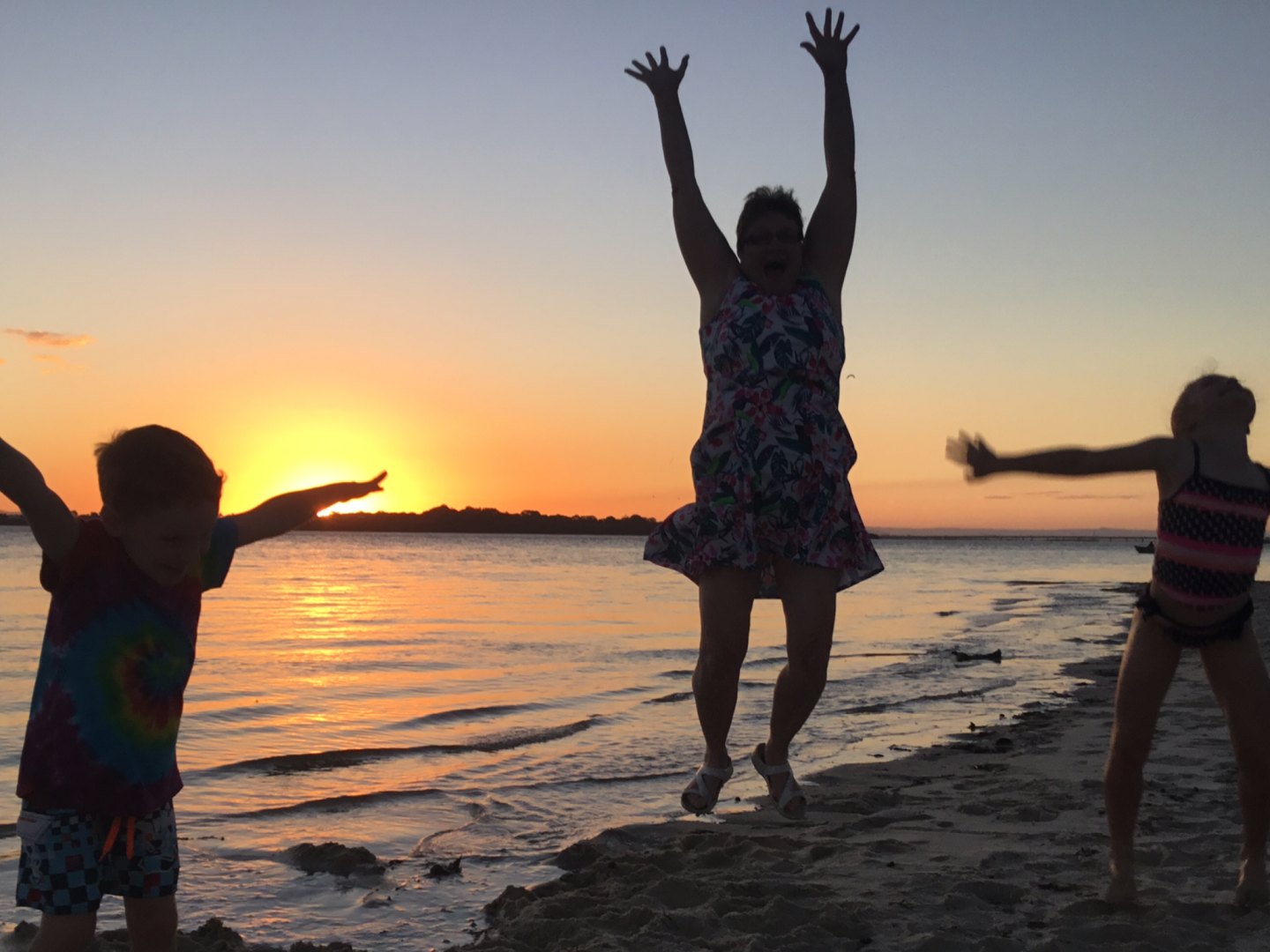
-- Edited by the rocket on Saturday 27th of July 2019 08:40:31 PM
File size needs to be decreased considerably.

Place the image in Windows Photo Gallery, then go to ''properties'', then ''resize'', choose the ''640'' option (small) & resize.
If you have Photoshop you can do the same thing. Very simple.
Cheers Judy
Small images can do with a bit of contrast sharpening. So in PS for example, before scaling down the image. Sharpen the image by about 10 to 20% but with a massive radius of 50 to 100 pixels. It seems counter intuitive to sharpen to such a large radius but it sharpens the contrast.
Better still copy the layer, change the layer to luminosity & sharpen that layer so you are not sharpening coloured artefacts. You are only sharping the lightness channel.
Or change to LAB, sharpen the lightness channel & blur the A & B channels. This is good if you have some colour artefacts you need to tone down. Sometimes only the A or B channel needs bluring to lesser degrees. Then change back to RBG.
I just tried a large image in Handcent & SMS to myself & it cut it down to 640 X 480 pixels & 217kb.
P.S. Handcent you can set up to confirm before sending which has saved my life many times!
I hope you don't mind here it is via Handcent 360 X 270 pixels 0.1mp 176kb:
I prefer to do this stuff in Photoshop as you can really squash images down with a good balance with minimal artefacts also using the above tips. A 720 X 480 pixel image one can have good quality at 25 to 45kb in general.
Whenarewethere wrote:
I hope you don't mind here it is via Handcent 360 X 270 pixels 0.1mp 176kb:
Thankyou. I do not mind. But how do i get it to my avatar?
Firstly download this smaller image to your computer or phone. When that is done click on > User Details (in bar near top of forum page) > Avatar (on the left) > Upload from your computer (or phone) > go to your download folder & select the image.
-- Edited by Whenarewethere on Sunday 28th of July 2019 01:01:54 PM
In Handcent you can crop your image as well. So you can have a cropped & small pixel image with a small file size. Then SMS to yourself, then email to others who can only manage a small file.
But as I mentioned above the confirm before sending is priceless! You need to turn this feature on in the setting menu > All (at top of page) > Send message settings > Send message confirm
-- Edited by Whenarewethere on Sunday 28th of July 2019 12:53:29 PM
As an exercise I just changed my avatar, no drama, go in to Grey Nomads profile, select avatar, remove current avatar, select upload from computer, select image you want as your avatar, then click upload.
I reduced the pic to about 70 kb using FreeSizer. http://www.freesizer.com/
Good luck.
Whenarewethere wrote:
Firstly download this smaller image to your computer or phone. When that is done click on > User Details (in bar near top of forum page) > Avatar (on the left) > Upload from your computer (or phone) > go to your download folder & select the image.
-- Edited by Whenarewethere on Sunday 28th of July 2019 01:01:54 PM
How do i download the smaller image to my computer?
I'm on a Mac but I think you right click on the image & a menu comes up. Or click & hold or control ckick & drag the image to the desktop.
-- Edited by Whenarewethere on Sunday 28th of July 2019 05:06:06 PM
Pretty simple really.
If you know how.
-- Edited by Olive Oil on Sunday 28th of July 2019 05:17:28 PM
& going from 2d to 3d multiply by a 100, & if you have set up your own render farm for fly-throughs multiply that by another 10! Anything less than two 30" monitors makes you inefficient.
-- Edited by Whenarewethere on Sunday 28th of July 2019 05:55:53 PM
Get it right with the camera!
It is more enjoyable & a lot less effort than fixing it up later on the computer.
Thanks. Got it to my photos but it is not very clear. I chose another photo and have it as my avatar but its upside down.
Do not know why it is upside down. The finger one, grandson put his finge4 in front of lense but turns out his finger is pointing to a sea urchin in the sand.
-- Edited by the rocket on Sunday 28th of July 2019 07:30:18 PM
It maybe up the right way in the camera. In a situation I had on the last holiday, there was a large piece of dust inside at the top of each image & stood out like dogs ..... So wanting to avoid cleaning up skies I photographed upside down & turned the images around in the camera. Easy!
But.... when it came to posting a few images the photos would appear upside down again.
The problem is the images are rotated in the camera saying which side is up with a bit of code & this is not always recognised down stream by some websites etc.
So to be absolutely sure up is up every time, you have to use Photoshop or similar which actually rotated the pixels so up is up.
Hopefully someone else has a quick solution.
-- Edited by Whenarewethere on Sunday 28th of July 2019 08:26:32 PM
I have rotated it in my phone but there is no guarantee that it will stay this way.
Hello whenarewethere, thankyou so much. I think i must be getting old. Would it be possible to do the one with me jumping as well. Thanks. Im excited.
-- Edited by the rocket on Sunday 28th of July 2019 08:11:09 PM
-- Edited by the rocket on Sunday 28th of July 2019 08:13:00 PM
If it is not clear because it is a small image that is ok as it is intended to be viewed as a thumbnail size only. Viewing it large on even a phone is not what the image size is for & it will never look right because there are not enough pixels.
Thumbnail size images as I said earlier need a bit of extra contrast, & sometimes sharpening a second time at 0.3 pixel sharpening.
This is the only one I could see that was upside down unless I'm getting old to!
Thanks. Having a senior moment. Cheers.
Better than a junior moment...... throwing a tantrum!